
Creation
The Creation feature helps you generate text, images, tables, and more. All features follow a free-form creation approach that you can customize as needed.
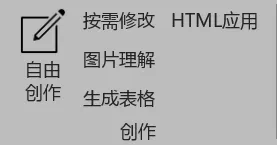
Free Creation
In the Free Creation feature, you can directly write your creation requirements or use saved templates to quickly start creating.
Create
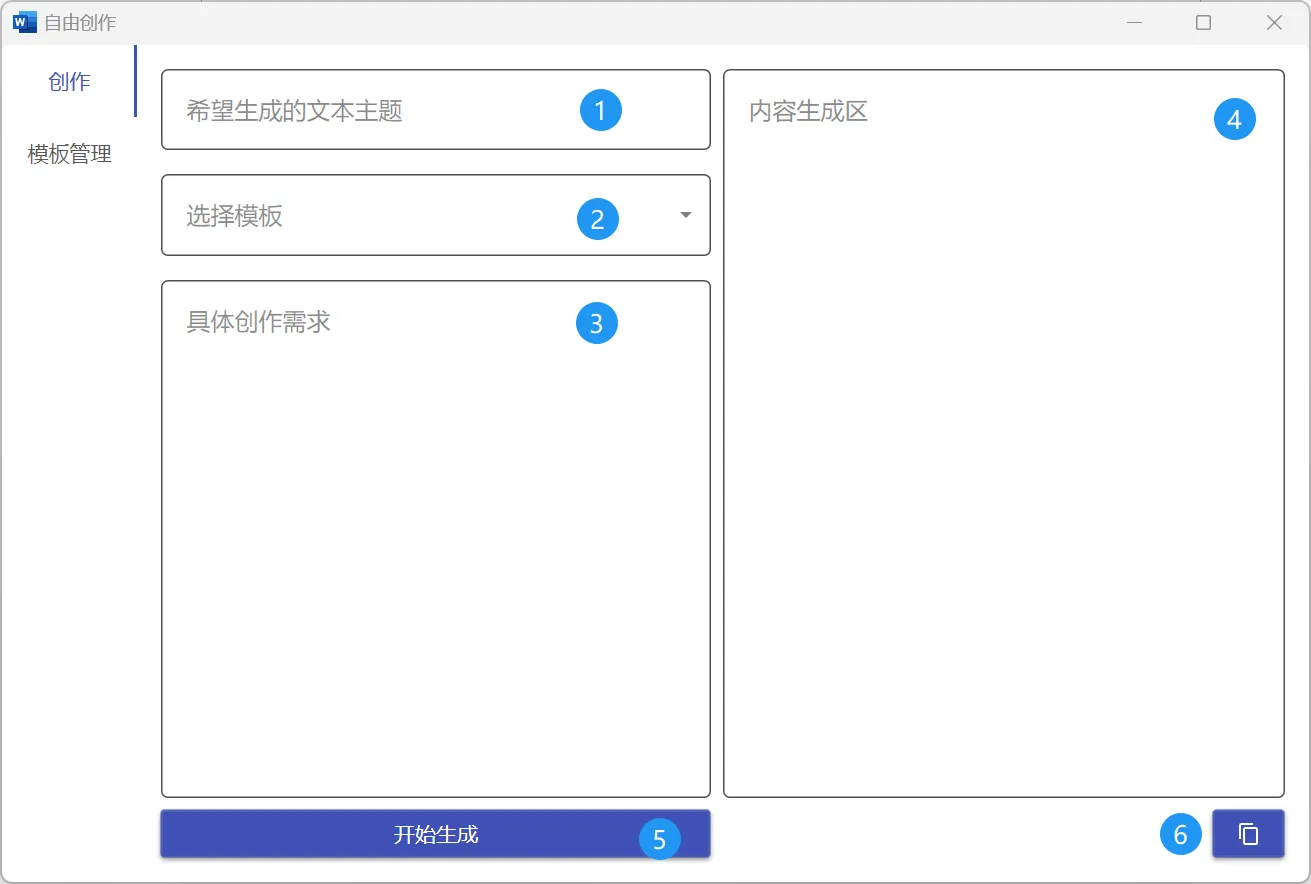
The Create tab is the main workspace where you enter your creation requirements and view generated results.
Topic Area
Enter the type of content you want AI to generate, such as story, contract, ad copy, etc. This tells the AI "I want you to write about topic".
Template Selector
Shows all your saved creation templates. Selecting one auto-fills the requirements area.
Requirements Editor
Describe your specific requirements in detail, such as style, length, key points. Click Generate to produce results.
Results Display
AI-generated content appears here. Click Copy to copy results to clipboard.
Template Management
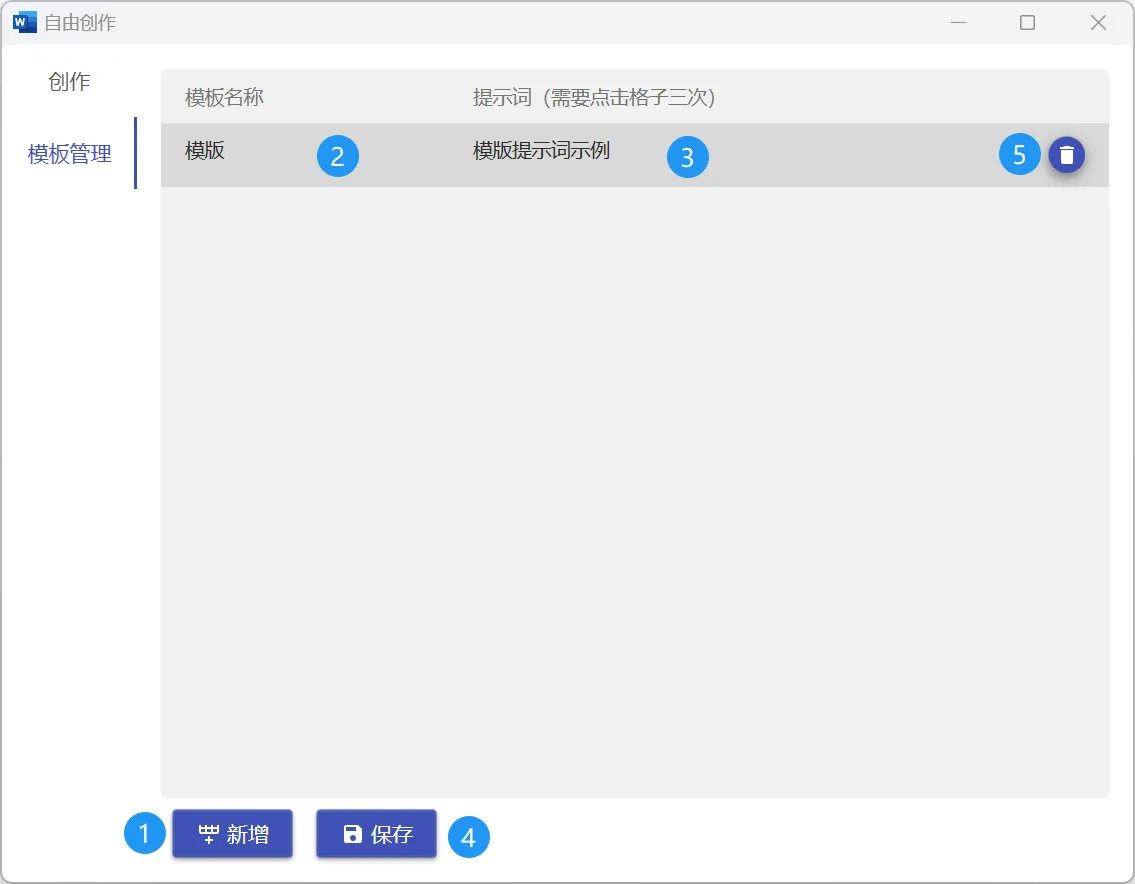
Create, edit, and manage creation templates to improve efficiency.
- New Template: Click
Addto create a new template - Template Name: Set clear names for quick identification
- Template Content: Write template content with variable support
Modify
Fine-tune generated content using the Modify feature.
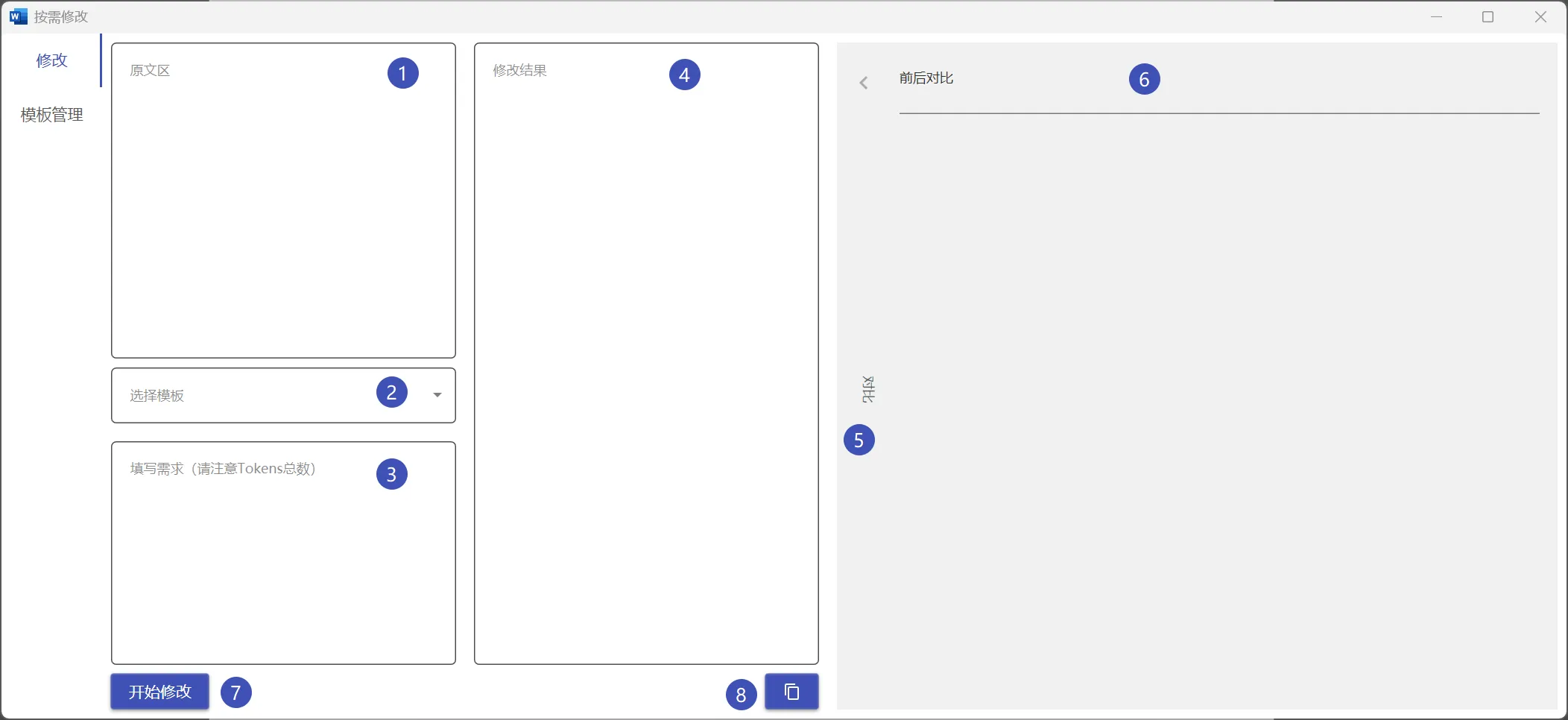
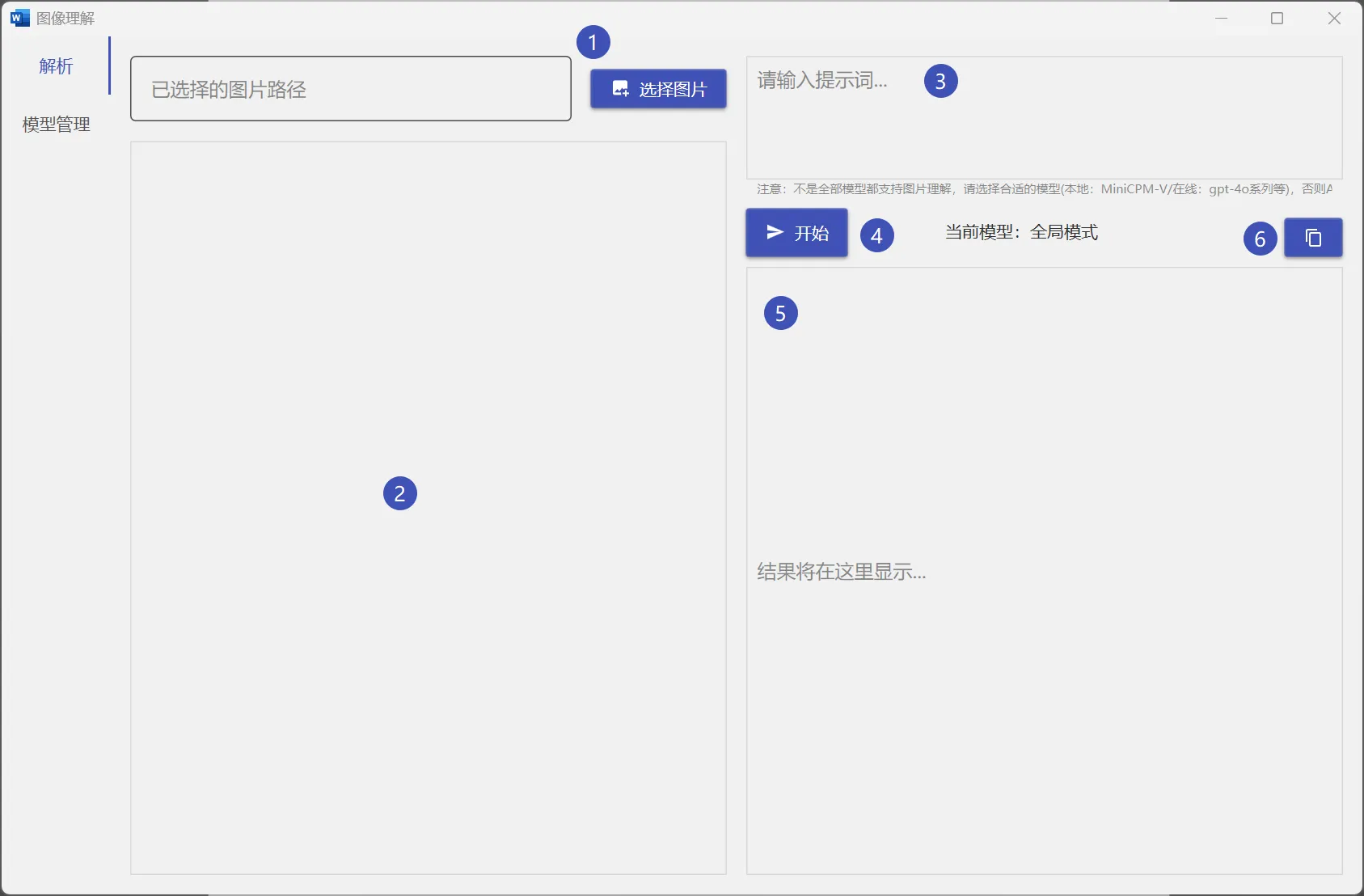
Image Understanding
Send images to AI for analysis (requires multimodal model support).
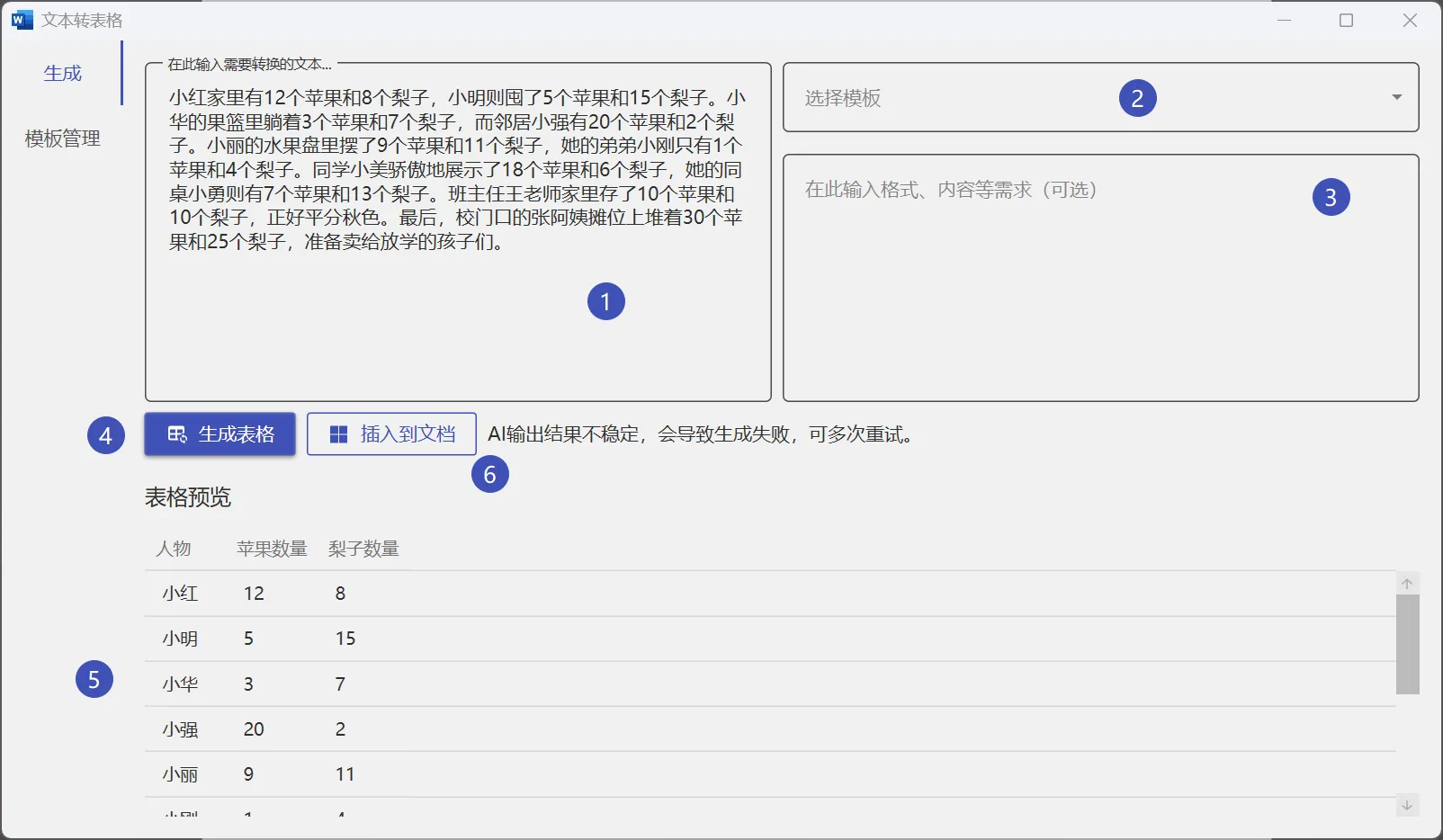
Generate Table
AI can automatically create formatted tables based on your description.
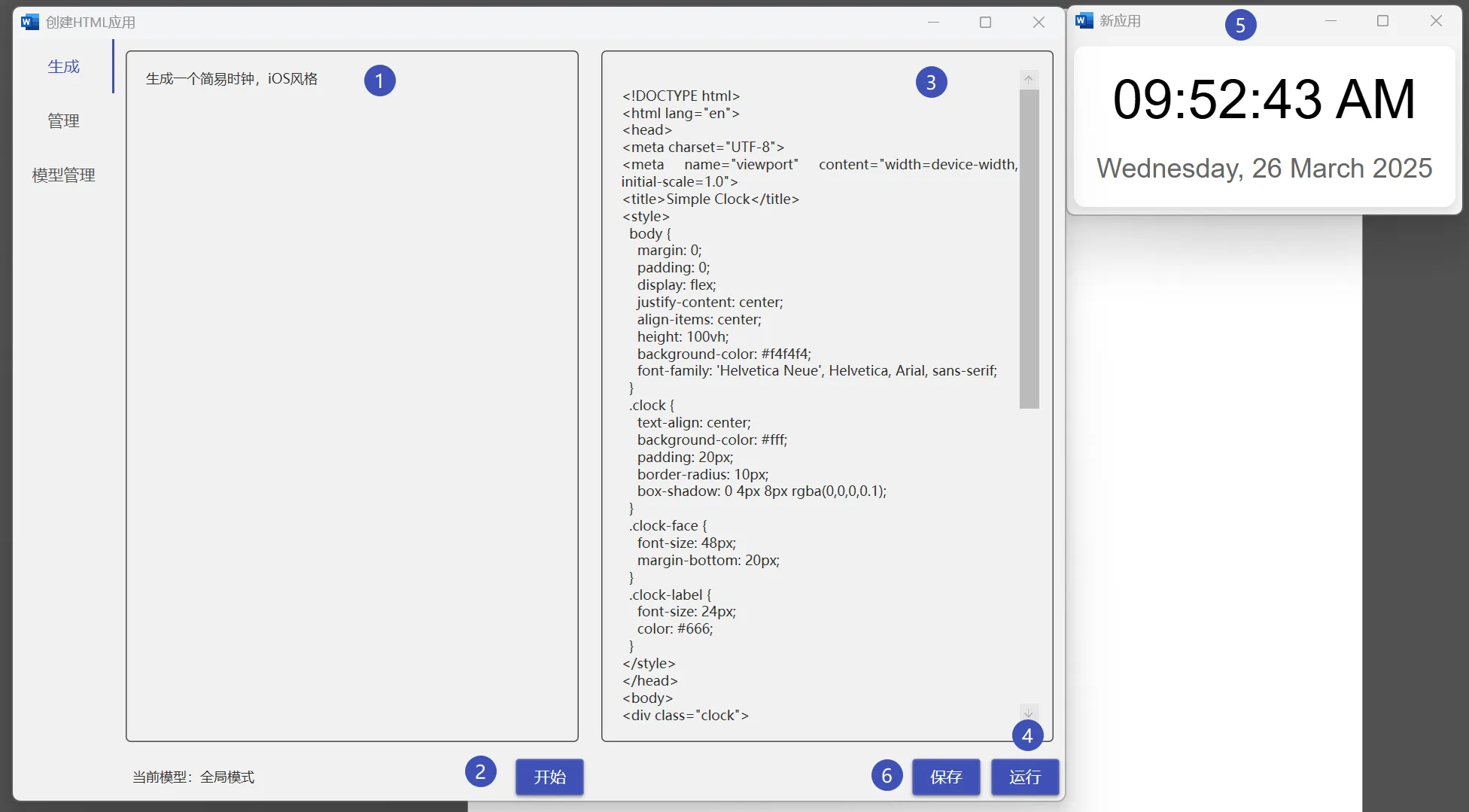
HTML Application
Generate HTML code snippets with live preview in your document.
Tips
- Using templates greatly improves creation efficiency
- More specific descriptions yield better results
- Use the modify feature for fine-tuning